HZLAPaste
A native macOS clipboard manager: a Raycast/Paste-style history bar, keyword text expansion, link previews, and encrypted-at-rest storage — built with Swift and SwiftUI.
 Lives quietly in the menu bar — no Dock icon required.
Clipboard history bar (⌘⇧V)

A floating, edge-to-edge glass bar docked above the Dock — press ⌘⇧V anywhere to bring it up, search or arrow through recent items, hit Enter to paste into whatever app you were just in, ⌘Enter to copy without pasting, or Esc to dismiss.
- Captures text, images (including animated GIFs), files, and links copied anywhere.
- Copied links auto-fetch their page title and preview image.
- Pin items to keep them out of retention/archiving.
- Per-item preview panel with paste, copy, pin, and delete actions.
- Skips content from apps that mark it concealed/transient (e.g. password managers), and lets you manually exclude any app from being captured.
Preview panel
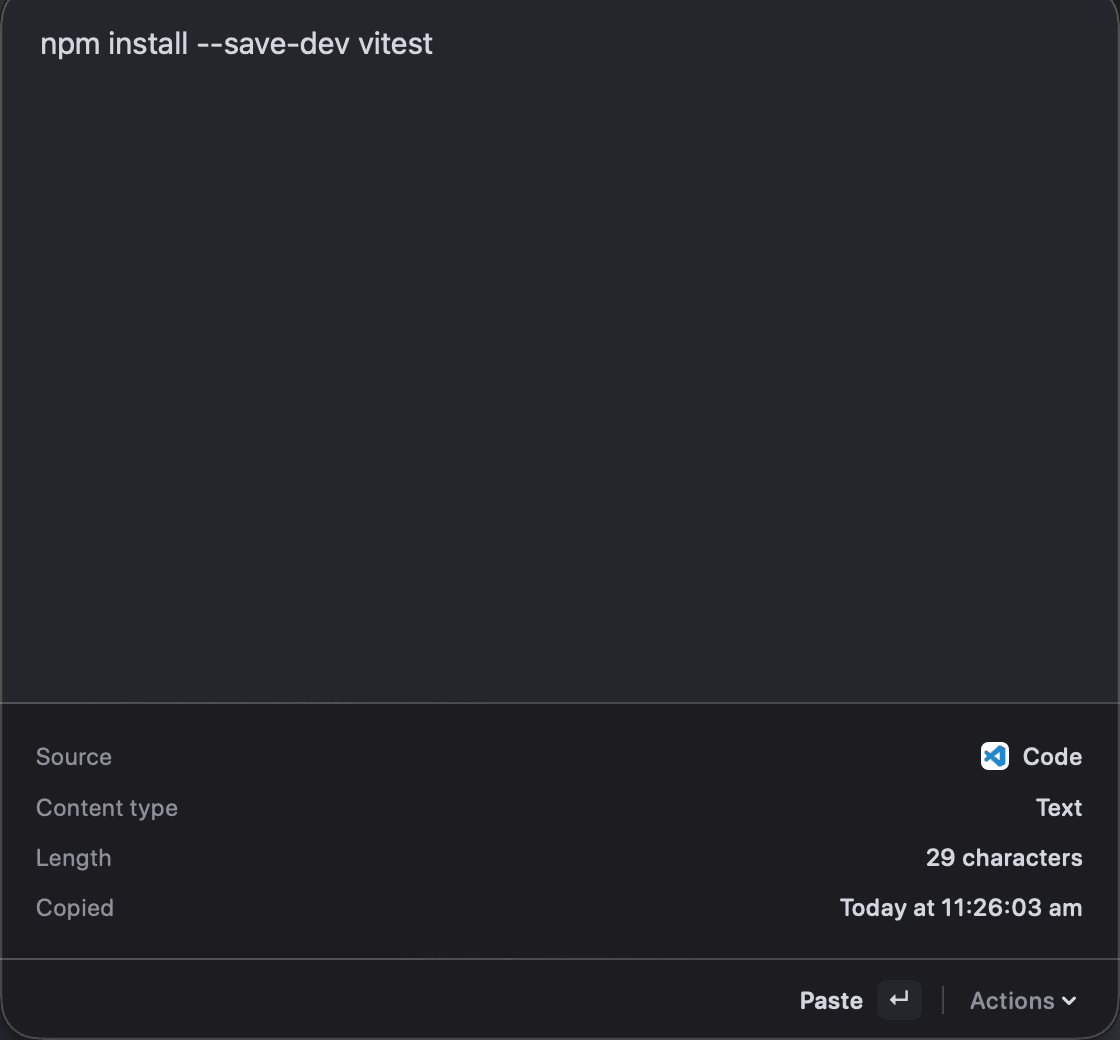
Select any item to see a full preview with paste, copy, pin, and delete actions right there — no need to paste blind to check what you copied.
Menu bar quick access
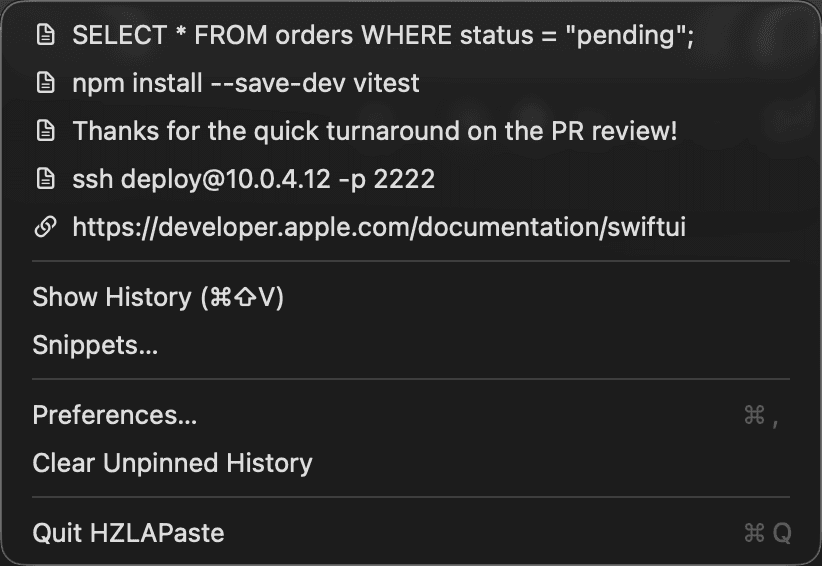
Lives in the menu bar (no Dock icon required) with pinned and recent items one click away, plus shortcuts to Snippets, Preferences, and clearing history.
Snippets (text expansion)
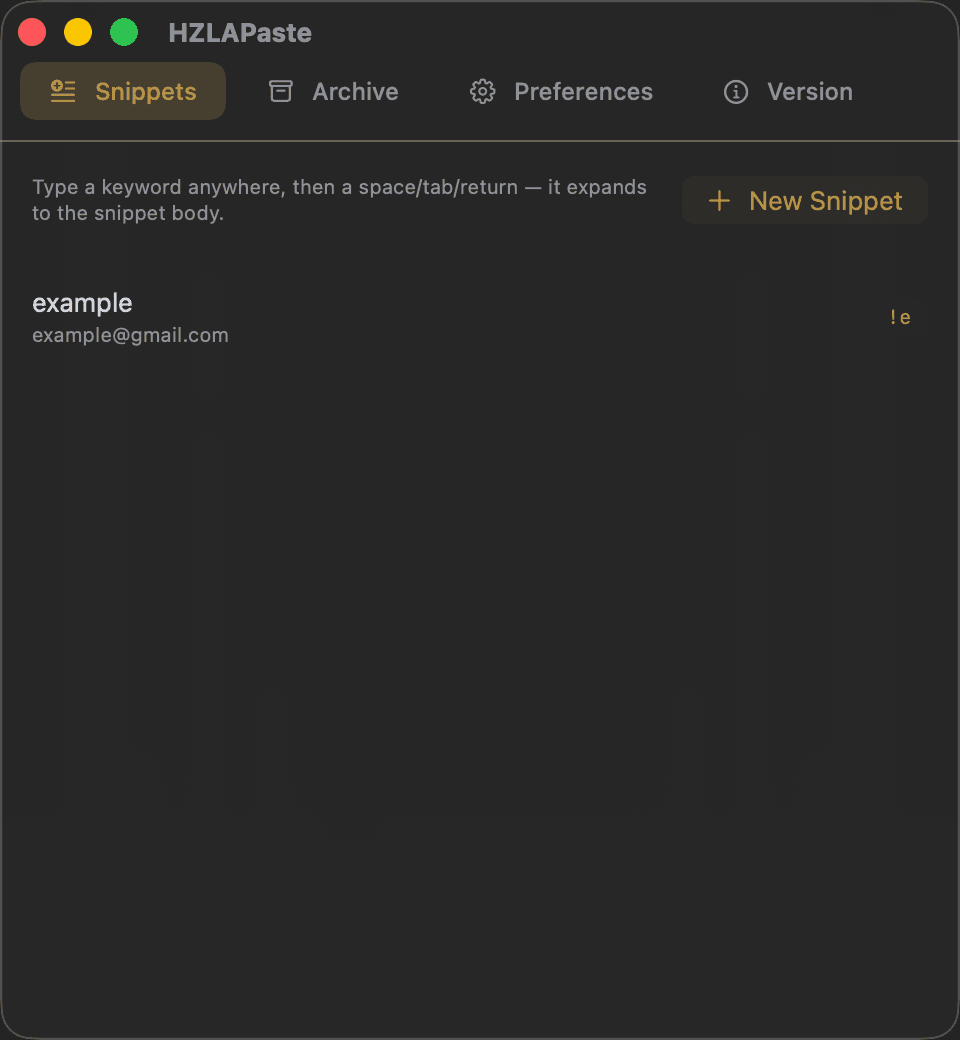
Define a keyword → body pair once, then type the keyword anywhere on the Mac followed by a space/tab/return and it expands in place — the same trick as Raycast or TextExpander, gated behind macOS Accessibility permission.
Archive & retention
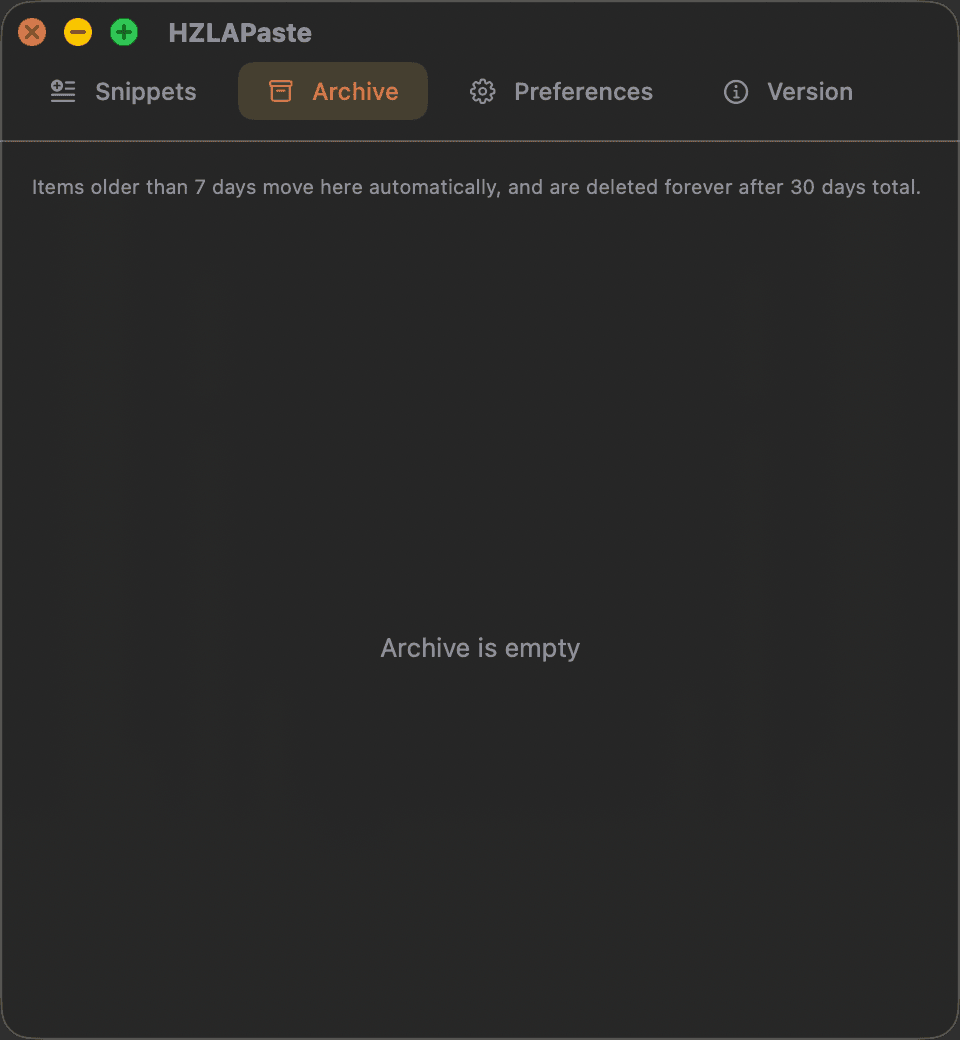
Unpinned items automatically move to an Archive tab after a configurable number of days, then are permanently deleted after a second configurable cutoff — copied content can be sensitive and shouldn't linger forever. Pinned items are exempt. Anything archived can be restored or deleted early.
Preferences
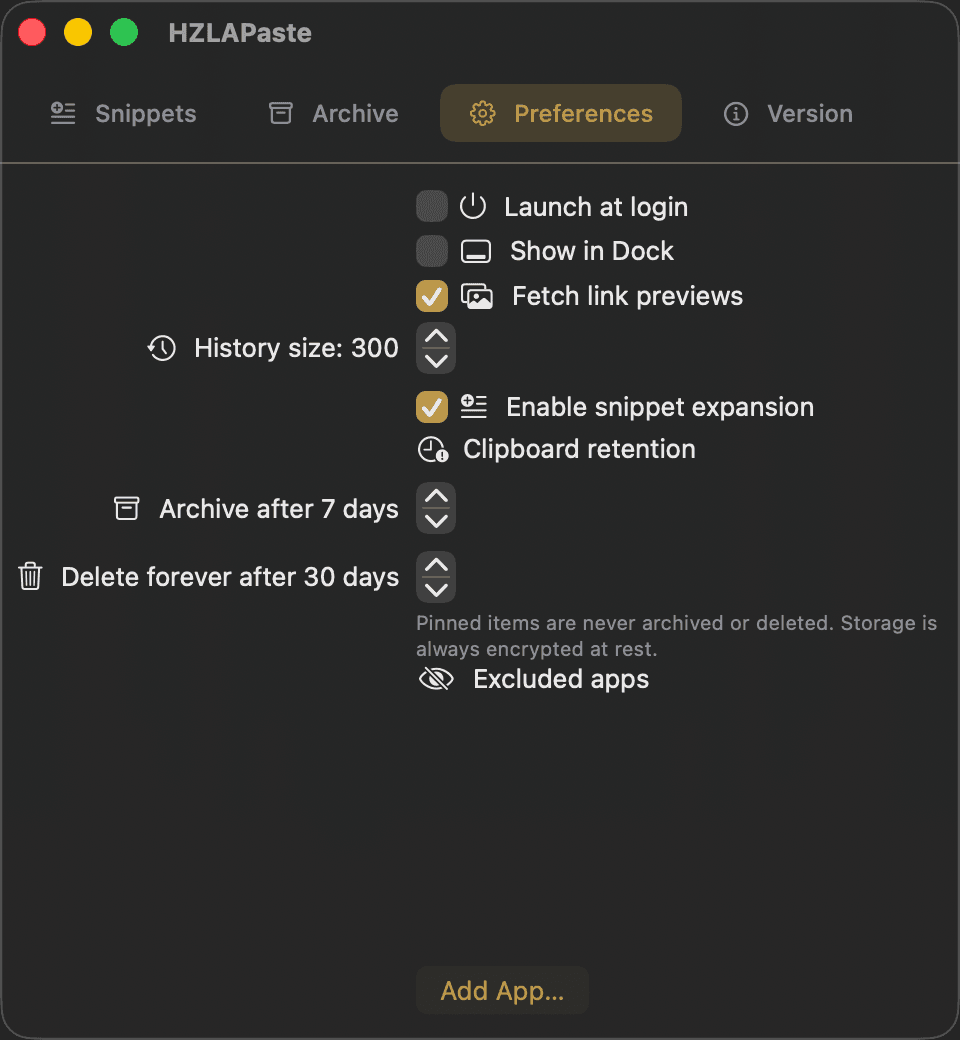
- Launch at login, show/hide the Dock icon
- History size limit
- Toggle link-preview fetching and snippet expansion
- Archive-after / delete-after retention windows
- Per-app exclusion list
Requirements
- macOS 14 (Sonoma) or later
- Xcode Command Line Tools (only if building from source):
xcode-select --install
Installation
Option A — DMG (easiest). Download HZLAPaste.dmg, double-click to mount, then drag HZLAPaste into Applications.
Option B — build from source:
git clone https://github.com/hilyas6/HZLAPASTE.git
cd HZLAPASTE
./build.sh
This builds a release binary with Swift Package Manager and packages it as HZLAPaste.app in the project root. To rebuild the .dmg installer instead, run ./make-dmg.sh.
Opening an unsigned app
HZLAPaste is signed with a local development certificate, not an Apple Developer ID, so it isn't notarized. macOS Gatekeeper will block it the first time. To open it anyway:
- Right-click (or Control-click) HZLAPaste.app in Applications and choose Open — then Open again in the confirmation dialog. You only need to do this once.
- If that option doesn't appear, go to System Settings → Privacy & Security, scroll to Security, and click Open Anyway.
- If macOS says the app "is damaged and can't be opened," clear the quarantine flag from Terminal:
xattr -cr /Applications/HZLAPaste.app
Permissions
On first use, macOS will prompt for Accessibility — required for auto-paste and snippet expansion. Grant it in System Settings → Privacy & Security → Accessibility. Nothing else is needed — clipboard monitoring itself uses no private APIs and needs no permission.
Keyboard shortcuts
Encrypted at rest & license
Clipboard history and snippets are stored on disk encrypted with AES-GCM; the key lives in the macOS Keychain, never embedded in the app or written next to the data. Released under the MIT license — see LICENSE for details. Every version is published on the Releases page.